Symcode QR Scanner for Job Tracking: One Code, Many Fields
A Symcode handheld imager shows up on more shop floors than almost any other scanner in its price range — cheap, plug-and-play, and fast at reading QR codes. But it has one hard limit that trips up shops who print several barcodes side by side on a job traveler: it only ever decodes one code per trigger pull. Here's how that limit actually works, why it causes miss-scans, and how Standard Time® turns it into an advantage instead of a problem.
19 August 2026

One trigger pull, one QR code, four fields parsed straight into the time log.
What the Symcode Scanner Is Doing on Your Shop Floor
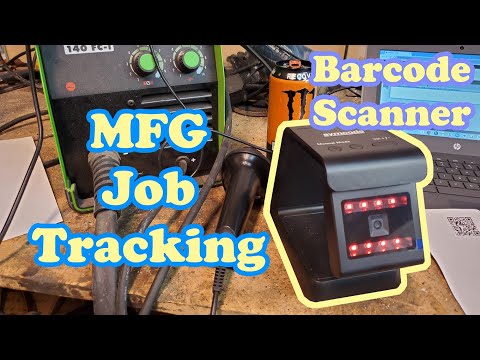
The Symcode is a handheld 2D imager — it captures a small image of whatever's in front of it and decodes the pattern in software, the same basic approach used by nearly every modern barcode scanner, not the single red laser line of an older-style scanner. It connects as a USB or Bluetooth HID keyboard wedge: plug it into a PC, tablet, or the device running Standard Time®'s Scan Barcodes page, and every decoded value gets "typed" into whatever field has focus, followed by an Enter keystroke. No drivers, no SDK, no configuration software to install.
That's exactly why it's a popular choice for job tracking: an employee scans their badge to clock in, scans a work order to start a timer, scans an operation code to log which step they're on, and scans a STOP code to close it out — all without touching a keyboard or mouse. Because it's a 2D imager, it reads both QR codes and 1D linear barcodes (Code 128, Code 39, UPC, and similar), which is why it works fine in shops with a mix of printed labels and QR-based job tickets.

QR just holds more data per code — the one-code-per-scan rule doesn't change.
Optimized for QR, One Code at a Time — No Matter Which Type
Because the Symcode is built around capturing a full 2D image and decoding it, it's fundamentally tuned for QR: a QR code is a full matrix, and the imager can lock onto it, correct for tilt and glare, and pull it out of a busy background faster than it can chase down a 1D barcode's single track of bars. Reading 1D codes is really a subset of what a 2D imager already does, which is why the same device handles both without switching modes.
What doesn't change between the two is the decode engine's core behavior: aim, pull the trigger, get one beep, get one string. Whether that one code happens to be a QR matrix packed with data or a simple 1D barcode with a single job number, the scanner always resolves down to exactly one value per scan. This isn't a Symcode quirk — it's how nearly every handheld imager in this price class behaves. Understanding that one rule is the key to everything else in this article.

Multiple codes on one label mean the operator has to aim perfectly — every single scan, all shift long.
Why Barcodes Printed Side by Side Cause Miss-Scans
A common (and understandable) instinct is to print a job traveler with several 1D barcodes lined up next to each other — one for the work order, one for the operation, one for a quantity — so an operator can scan whichever field applies at that moment. In practice, this is one of the most reliable ways to generate miss-scans on a real shop floor.
Two things go wrong. First, at normal scanning distance, the imager's field of view is wider than a single code, especially on smaller labels. If the codes don't have enough blank margin — the quiet zone — around them, the scanner can capture two codes at once and either fail to decode anything or decode a garbled value that happens to still pass a barcode rule's pattern, posting the wrong data to the wrong field. Second, even with correct spacing, you're still asking an operator wearing gloves, in low light, at an angle, scanning a label that's picked up some grease over the shift, to aim precisely at one of several adjacent codes every single time. That's not a barcode problem — it's a human factors problem, and it doesn't go away with a better scanner.

Standard Time®'s Barcode Rules engine reads the whole payload in one scan and routes each piece where it belongs.
The Standard Time® Fix: Multiple Fields in One QR Code
The real solution isn't spacing barcodes further apart — it's not needing several codes on the label in the first place. Because a QR code is two-dimensional, it holds dramatically more data in the same footprint than a 1D barcode ever could: a modest QR code can carry a hundred-plus characters, which is more than enough to describe an entire job ticket. Standard Time®'s Barcode Rules engine has condition types built specifically for this: JSON Structure, which checks whether the scanned text parses as JSON, and Contains multiple values, which splits scanned text on a delimiter character. Either way, one scan produces several pieces of data instead of one.
Print a single QR code that carries everything the operator needs to log against — employee, work order, task, quantity — and Standard Time® parses it straight into the fields you designate. Nobody has to choose which of several codes to scan, because there's only one.
JSON-structured example — one QR code encoding four fields:
{"emp":"J.MARTINEZ","wo":"WO-4821","task":"WELD","qty":12}
A rule using the JSON Structure condition recognizes this scan as structured data and maps emp to the employee lookup, wo to the work order lookup, task to the task/process lookup, and qty straight into a quantity field — all from one scan.
Delimiter example — the same idea without JSON, for shops that prefer a shorter, simpler payload:
WO-4821|WELD|12
A rule using Contains multiple values with a pipe (|) as the condition value splits this into three segments and routes each to its designated field, the same pattern already documented in How to Use Barcode Rules.
Either approach eliminates the side-by-side barcode layout entirely. There's exactly one code to aim at, exactly one trigger pull, and the parsing happens automatically on the Standard Time® side — the operator never sees the JSON or the delimiters.
Designing a Multi-Field QR Label That Scans Clean
- Keep it short Every extra character increases the QR code's version and module count, which makes each individual square smaller and harder for the imager to resolve at shop-floor distance. Favor short field keys (
wo, notwork_order_number) or drop JSON for a pipe-delimited string when print space or decode speed matters more than readability. - Print big enough A QR code with more data needs a larger printed size to keep each module scannable — a dense code shrunk down to fit a small label is a common cause of slow or failed reads. Print at 300+ dpi and size the code for your typical scanning distance, not the smallest space it will physically fit.
- Leave a real quiet zone The blank margin needs to surround the whole QR code, not sit between fields inside it — the fields inside a single QR code don't need visual separation at all, since the scanner reads the whole matrix as one unit.
- Test the raw value first Before wiring up a Barcode Rule, scan the label into a plain text field (or check the scan log at Tools → Scan Log) to confirm exactly what string the scanner is sending. Confirming the raw payload first saves a lot of guessing when a rule doesn't fire the way you expect.
- One code, one purpose Resist the urge to also print a redundant 1D barcode next to the QR "just in case" — that reintroduces the exact adjacent-code problem the QR code was meant to solve.

The Scan Barcodes page is where a Symcode scanner's decoded value lands — whether it's a plain job number or a multi-field QR payload.
Setting Up the Symcode Scanner in Standard Time®
Because it's a standard HID keyboard-wedge device, setup has nothing to do with Standard Time® specifically — plug it in (or pair it over Bluetooth), and it behaves like a keyboard that only ever "types" barcode values. Open the Scan Barcodes page, click into the scan field, and pull the trigger on a test label to confirm the value lands correctly.
From there, the work is entirely on the Standard Time® side: build Barcode Rules for each record type you're scanning, using the pattern and condition types covered in the Barcode Rules reference. For multi-field QR labels specifically, add a JSON Structure or Contains multiple values condition and map each parsed segment to its destination field, exactly as shown above.
Barcode Scanning Guides
- How Barcode Rules Work — Complete Reference
- How to Use Barcode Rules — condition types, including JSON Structure and Contains multiple values
- Barcode Scanning Q&A
- Things to Scan on the Shop Floor — Reference
- Creating Users and Employee Barcodes for Scanning
- Creating Projects and Job Barcodes for Shop Floor Scanning
- How To Set Up A Barcode Scanning Station