Scheduled Exports Automate Integration
Every shop has a moment where a manual export stops being good enough — a job that has to run whether or not someone remembers to click Export. Standard Time® Scheduled Exports handle that moment: point one at your time logs, your projects, your tasks, or almost any other table, set a recurring schedule, and let it run unattended for as long as you need it.
6 August 2026
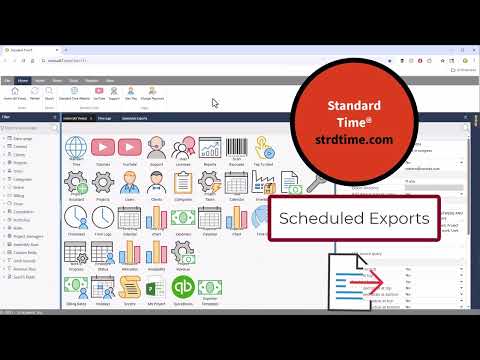

Configure it once. From then on, the schedule does the exporting — not a person.
Why Scheduled Exports Exist
Most Standard Time® users export data manually: open a grid, apply a filter, choose File > Export, done. That works fine for a one-off report. It breaks down the moment a report needs to happen every week, or feed into a system that expects a fresh file to already be sitting in a folder every morning.
A Scheduled Export is a saved definition — what data, filtered how, delivered where, and how often — that Standard Time® runs automatically without anyone touching a keyboard. It is managed from Tools > Scheduled Exports, and once the Active flag is on, the export fires on its own schedule for as long as you leave it running.
That single idea — set it once, it runs forever — is what turns Standard Time® from a system you have to remember to pull data out of into one that pushes data to everywhere else on its own.

If it's a table in Standard Time®, it can very likely be scheduled — including tables that don't have a dedicated export button anywhere in the interface.
Exporting Time Logs on a Schedule
Time Logs is the most common target for a scheduled export, and for good reason — it's the table payroll, billing, and job-costing all depend on. A typical setup filters to Tasks.StartTime >= [LASTWEEK] AND Tasks.StartTime < [THISWEEK], picks the columns payroll actually needs (user, project, start, stop, actual work), and delivers the result as an Excel file every Monday morning before anyone gets to their desk.
Because the filter uses a date tag instead of a hard-coded date, the same export keeps working indefinitely — [LASTWEEK] always means last week, whenever the schedule happens to fire it.
Exporting Projects on a Schedule
A Projects export is typically used for management visibility rather than payroll — client, status, folder, billing rate, and rolled-up cost-to-date on every open job, dropped into a shared spreadsheet every morning so management never has to open Standard Time® just to check where things stand. Combine it with Group records and Totals at bottom to get subtotals by client or folder automatically, matching whatever grouping is already used on screen.
Exporting Project Tasks on a Schedule
Project Tasks carries the deepest data of any table in Standard Time® — duration, percent complete, critical path fields, baseline vs. actual dates, and computed cost fields. A scheduled export of this table is how a Gantt-heavy shop feeds a weekly status file to a customer, or hands a snapshot of baseline-vs-actual variance to a project manager without ever opening the desktop client. Because Column layout is just a comma-separated list of property names, you decide exactly which of those fields go out — full detail for internal use, a trimmed-down subset for anything leaving the building.
Exporting Everything Else
Nothing limits Scheduled Exports to those three tables. Set Data table to Inventory for a weekly stock-level snapshot, Expenses for material usage and job cost reporting, Timesheet for a payroll-ready weekly summary with scheduled-vs-actual and overtime totals built in, or Users for an up-to-date roster. If a table doesn't fit neatly into a single filter, the SQL source query field accepts a full custom SELECT statement — joins, aggregations, and computed columns included — so there is effectively no export a Scheduled Export can't be shaped to produce.

One export record, delivered to as many destinations as you configure — combine them freely.
Sending Data to External Systems
This is where Scheduled Exports stop being just a reporting tool and start acting as an integration layer. Every export can be delivered — automatically, on its own schedule — to any combination of:
CSV / Excel File External SQL Database FTP / SFTP Drop Email Attachment Google Sheets IIF / XML File
A CSV or XML file dropped into a watched folder is the simplest way to feed practically any ERP or accounting system — most import tools on the receiving end are built to pick up a file that shows up on a schedule, not to negotiate a live connection. The FTP connection property handles that delivery over FTP, FTPS, or SFTP directly from the export, so the file lands exactly where the receiving system expects it, with no manual upload step in between.
For tighter coupling, an export can write directly into an external SQL database — rows inserted straight into a staging table your own database or ERP already reads from. And because Export path and Email and FTP connection are independent settings, one export record can write the file locally, email a copy to a manager, and push it to an ERP by SFTP — all from a single scheduled run.
.iif file for a format QuickBooks Desktop can import directly. For QuickBooks Online, use the QuickBooks Online integration instead — it syncs time and expenses automatically without a scheduled file at all.

Every Scheduled Export can combine filtering, sorting, column selection, calculated fields, and a fully custom query.
Sorting, Filtering, Columns, Scripts, and Calculations
What separates Scheduled Exports from a basic recurring file dump is how much control you have over the data before it ever leaves Standard Time®:
- Filtering — the Filter string field accepts any SQL WHERE clause, and supports self-updating date tags like
[LASTWEEK],[THISMONTH], and[YESTERDAY]so the same export always pulls the right window without editing a date by hand. - Sorting and grouping — Group records mirrors the grouped grid view in the export file, with subtotal rows inserted automatically for each group.
- Column control — Column layout is a simple comma-separated list of property names that decides exactly which fields appear, and in what order, independent of how the grid is arranged on screen.
- Calculations — computed fields like actual cost, remaining cost, and baseline variance export the same numbers Standard Time® calculates internally, plus optional totals rows for grand totals, scheduled-vs-actual, and overtime.
- Custom scripts — the SQL source query field takes over entirely when a single table and filter aren't enough. Write a full SELECT statement with joins across multiple tables and computed columns, and the export uses exactly that instead.
Every one of these stacks on top of the others in the same export record — a filtered, grouped, totaled, custom-queried export, delivered automatically, is a completely normal configuration in Standard Time®.

Chain multiple exports into one sequence so a single trigger runs an entire batch of reports in order.
Numerous Scheduling Options
Recurrence isn't limited to a single daily or weekly checkbox. Choose from Weekly (any combination of days), Monthly (a specific day of the month), Yearly (a specific month and day), or Start of pay period — which fires automatically on the first day of each configured pay period, useful for payroll exports that need to align with a company's actual pay schedule rather than the calendar. Export time sets when it runs, with a ±60-minute matching window so it fires reliably even if the scheduler check lands a few minutes off.
The Sequence names field takes scheduling a step further: list several export names in one orchestrator record, and that single trigger runs every listed export in order. A shop that needs five different reports every Monday morning doesn't need five separate schedules — one "Monday Morning Reports" export with a five-item sequence handles all of it from a single 6:00 AM trigger.
And every scheduled export can still be run on demand — right-click any row and choose Run export now to test a configuration, or to trigger a report outside its normal schedule, without waiting for the next scheduled run.
Scheduled Export Guides & References
- Advanced: Scheduled Exports — the complete property reference for every field in the Scheduled Exports panel
- How to Set Up an FTP Connection — configure SFTP, FTPS, or FTP delivery for automatic uploads
- Google Sheets Integration — service account setup for automated Sheets exports
- OData & Power BI Integration — for live, always-current dashboards instead of a scheduled batch file
- FAQ: Import and Export