
Barcode Scanning Station Setup
A complete walkthrough of setting up a barcode scanning station — from mounting the device to scanning the first time entry on the shop floor.
Watch on YouTube22 April 2026
A barcode scanning station on your shop floor lets employees clock into jobs and tasks with a single scan — no paperwork, no manual data entry, no delays. You can build a complete station in under an hour using off-the-shelf hardware and the Standard Time® cloud. Here are the four steps.

A complete barcode scanning station — a device, a scanner, and printed barcode sheets — synced in real time to the Standard Time® cloud.
The hardware requirements are minimal: any device that runs a browser will work, and USB barcode scanners cost as little as $30. Standard Time® handles the data collection, job tracking, and reporting on the cloud side, so there is nothing to install or configure beyond a browser login.

Step 1 — Place a Chromebook, iPad, or any browser-capable device at the workstation.
Chromebooks cost $150–$300, require no antivirus, update automatically in the background, and survive the shop floor better than consumer laptops. Because Standard Time® runs entirely in a browser, there is nothing to install — employees open Chrome, log in, and start scanning. If a Chromebook is damaged or stolen, replace it and log back in within minutes. No data is stored on the device.
iPads and Android tablets work equally well if your shop already uses them. Windows laptops and workstations are also fully supported. The scanning interface is responsive and works on any screen size.

Step 2 — Plug in a USB barcode scanner. It works instantly as a keyboard input device — no drivers or configuration required.
For most shop floors, any USB handheld scanner in the $30–$80 range is sufficient. A few things to consider:
Popular models from Zebra, Honeywell, and Symbol all work out of the box with Standard Time®. Budget-friendly brands from Amazon work equally well for lower-volume environments.

Step 3 — Open a browser and log in to the Standard Time® cloud. The scanning interface is ready immediately after login.
Once logged in, the scanning screen waits for input. An employee picks up the scanner, aims it at their username barcode, and pulls the trigger. Standard Time® reads the input, identifies the employee, and opens a new time entry. The employee then scans the job barcode, followed by the task barcode. The time entry is now active and running.
To stop, the employee scans their username barcode again. Standard Time® closes the time entry and records the total duration. The data is immediately visible to managers on the Standard Time® dashboard and in any time reports.
There is no typing, no login prompt for employees, and no manual time card. The entire process takes three to five seconds per scan sequence.

Step 4 — Print barcode sheets for employees, jobs, and tasks from Standard Time® Reports, then post them at the station.
Standard Time® generates three types of barcode sheets from the Reports menu:
Laminate all sheets or slip them into plastic sheet protectors. Job-specific barcodes that travel with parts benefit from adhesive label stock — print them on a label printer or standard label sheets and attach directly to the work order packet or bin.
Each scan sequence captures a complete, linked time entry:
All of this data flows into Standard Time® reports, dashboards, and — if connected — into QuickBooks for billing and payroll. Managers see job status in real time without walking the floor or chasing paper timesheets.
A complete walkthrough of setting up a barcode scanning station — from mounting the device to scanning the first time entry on the shop floor.
Watch on YouTube
See employees scanning barcodes on a live shop floor — username, job, and task scans happening in real time as Standard Time® records every entry automatically.
Watch on YouTube
If your barcode labels won't scan, don't panic. This video covers the most common causes — low print quality, wrinkled or laminated labels, wrong scanner distance — and how to fix each one fast so your station is back up and running.
Watch on YouTube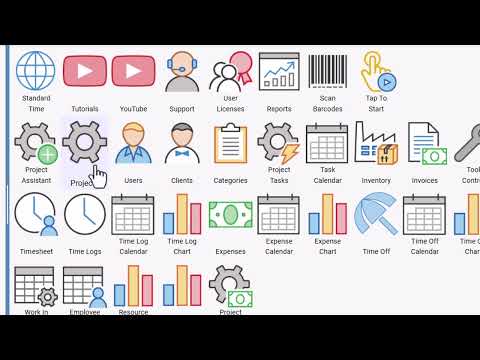
After scanning, head to the Time Logs page in Standard Time® to see every barcode scan as a timestamped record — who scanned, which job and task, and exactly how long they worked.
Watch on YouTubeFor a single scanning station, the typical setup time is 30–45 minutes from unboxing to first scan:
Additional stations are faster because the barcode sheets are already printed. Adding a second or third workstation is typically a 10-minute task per station once the first is running.
If you have a Standard Time® cloud subscription, the barcode scanning interface is already available — log in and navigate to the scan page. If you are evaluating Standard Time®, the free trial includes the full barcode scanning feature with no credit card required.
Need help configuring your first station or printing your first barcode sheets? Contact Scoutwest and we will walk you through setup in a short screen-share call.
Start a free 30-day trial and see how Standard Time® turns shop floor scans into real-time job tracking and accurate time records.
View Pricing Contact Us